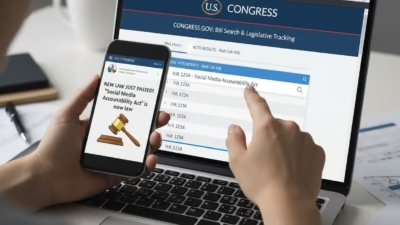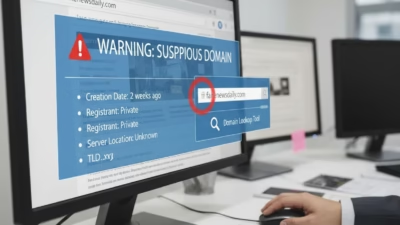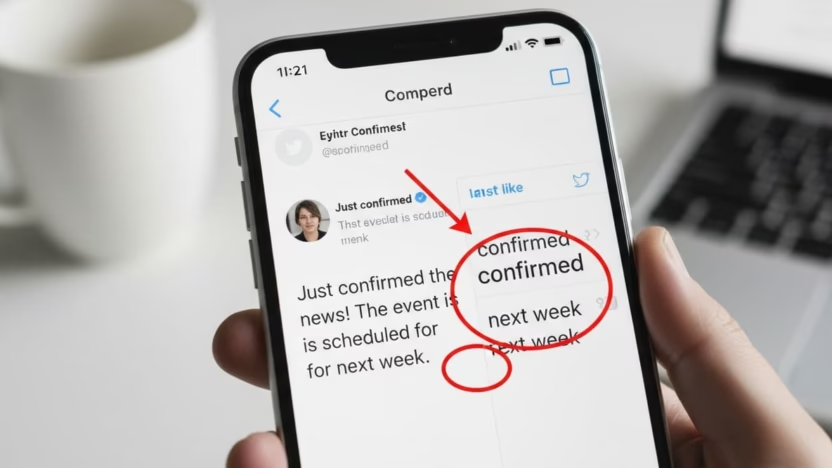
A screenshot feels like proof. It’s a photograph of someone’s words, right?
Not always. A post screenshot can be cropped, lightly edited, or fully faked in minutes, then shared with a confident caption that pushes you to react before you think. For students, that can be a problem in group chats, class debates, coursework, and even in how you judge real-world events.
This guide shows a practical way to verify tweet screenshot claims (and other social posts) so you can catch edited text, misleading crops, and fake handles without turning it into a full-time hobby.
Key Takeaways
- Treat screenshots as leads, not evidence, until you find the original post.
- Check for missing context first (date, replies, quoted post, thread).
- Look for editing fingerprints (odd fonts, blurred patches, uneven spacing).
- Verify the account, not just the name and profile photo.
- Use simple checks like text search, archives, and reverse image search before sharing.
Start with a 20-second “screenshot sanity check”
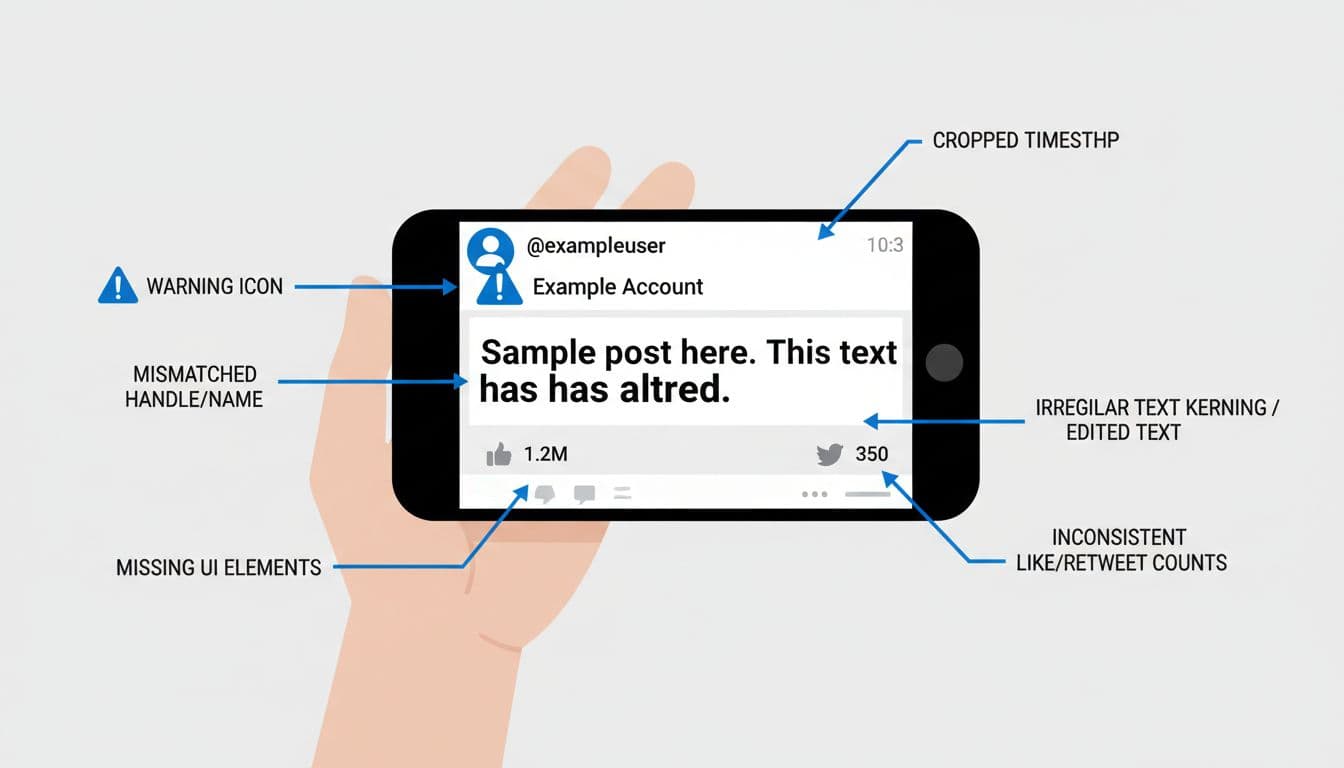
Before you zoom in like a detective, do a quick scan for what’s missing. A genuine screenshot usually has boring details, and fakes often “forget” them.
Look for:
- Timestamp and date: Is it visible, or neatly cropped away?
- Platform UI: Are reply, repost, and like icons present and consistent?
- Source context: Is it a reply, a quote post, or part of a thread?
- Image quality: Does the text look sharper than the rest (or blurrier)?
If it’s a screenshot of X (formerly Twitter), it helps to remember that real posts live in a wider page with replies, links, and profile details. A screenshot is only a slice of that page, and slices are easy to twist. For background on why screenshots can mislead even when they look convincing, see Why you should not trust every screenshot.
Catch crops that change the meaning (context is the first target)
Cropping is the quietest trick because it doesn’t require editing text. It just removes the parts that make the post understandable.
Common “context crops” include:
- Cutting off the top bar so you can’t see the account page details.
- Removing the timestamp so you can’t place it around a real event.
- Hiding the reply target, which can flip the meaning of a sentence.
- Cropping out the next tweet in a thread, where the writer explains themselves.
A good habit is to ask: what would I need to see to feel confident? Often it’s just the line above and below, plus the date.
If you’re using screenshots in arguments (in an essay, a presentation, or even a student election debate), it’s worth pairing this with critical reading skills. Logical tricks and selective framing often travel together, and this guide on spotting and calling out fallacies in debates helps you separate “sounds persuasive” from “is supported”.
Spot edited text by looking for small “design mistakes”

When someone edits words in a screenshot, they’re trying to copy a platform’s style. That’s harder than it looks. Platforms have consistent fonts, spacing, alignment, and icon sizes.
Zoom in and check:
- Letter spacing (kerning): Edited text can look slightly cramped or oddly stretched.
- Baseline alignment: One word may sit a tiny bit higher or lower.
- Blur patches: A soft rectangle behind text can mean it was covered and retyped.
- Crispness mismatch: The edited line might be sharper than the rest (or fuzzier).
- Odd line breaks: A sentence wraps in a way that feels “off” for the phone width shown.
Also watch for “too perfect” screenshots. If every part is crystal clear but the handle is mysteriously fuzzy, that’s a clue.
For a newsroom-style checklist, the Global Investigative Journalism Network has a solid primer: Simple tips for verifying if a tweet screenshot is real or fake.
Don’t trust the display name, verify the handle and account details
A fake handle is like a fake uniform, it relies on you recognising the outfit, not checking the ID.
Here’s what to check when you can access the real profile:
- Handle vs display name: People can copy a celebrity’s display name, the handle is harder to mimic exactly.
- Account history: Scroll back. Does the tone and topic match the “viral” post?
- Username changes: Some platforms show recent changes; sudden switches can be a red flag.
- Followers and interactions: Are replies from real-looking accounts, or a swarm of new profiles?
Even if the screenshot is real, the account might be an impersonator. That matters if your class is using it as evidence of a public figure’s view.
Find the original post (your best proof is a working link)
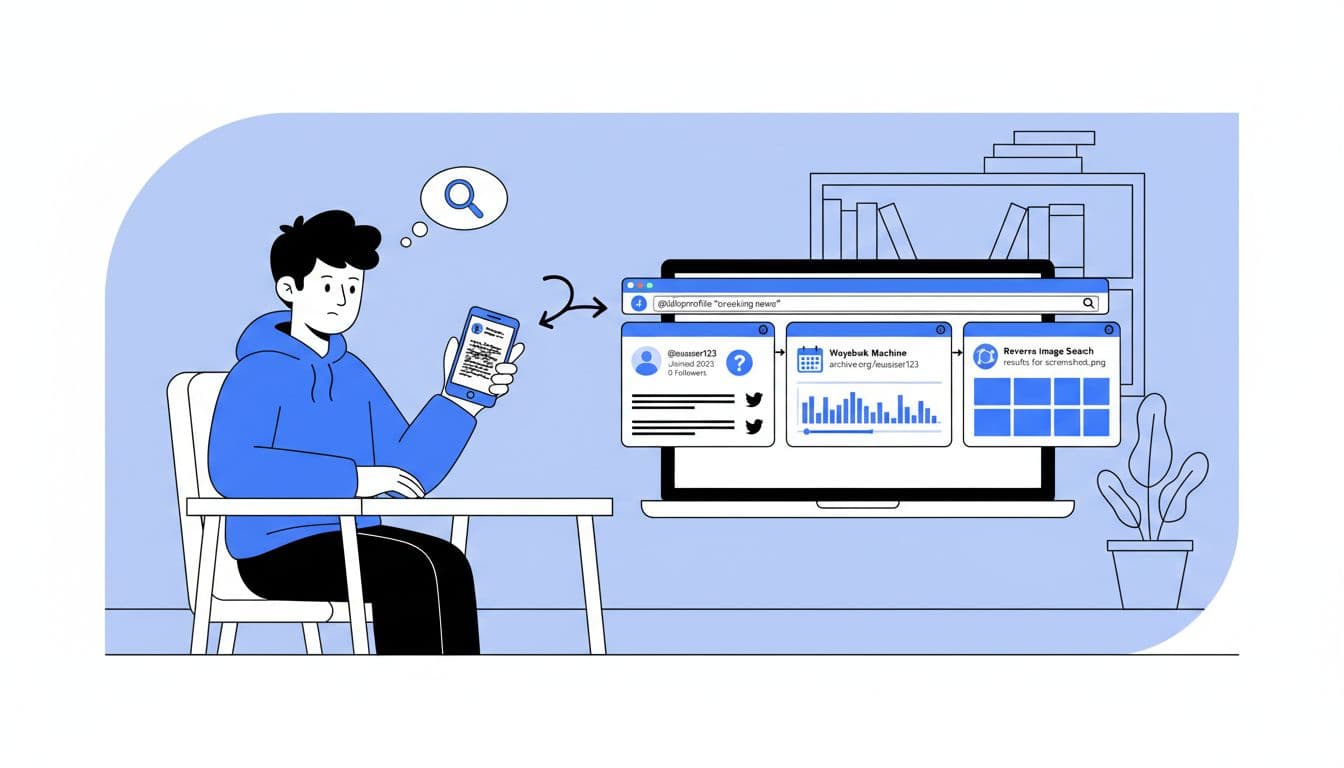
The strongest way to verify tweet screenshot claims is to locate the post itself (or a reliable record of it). Use this simple workflow:
1) Search the exact text Put a short unique phrase in quotes in Google. Add the supposed handle. If it’s real and public, someone has likely linked it, quoted it, or reported it.
2) Check the account page directly If you know the handle, search for the profile and scan recent posts. Many fake screenshots fail here because the post never existed.
3) Look for independent copies News articles, press releases, or other users quoting the post can confirm it existed, especially for high-profile accounts.
4) If it’s “deleted”, try archives Some posts vanish fast. This is where guides on checking deleted posts help, such as How to check if that deleted tweet is real. You’re looking for confirmation from more than one place, not just another random screenshot.
If you want a broader student-friendly approach to checking claims without burning hours, this piece on fact-checking political claims for students fits well with screenshot checks, because the mindset is the same: slow down, find the source, then decide what it’s worth.
How to write it up (so your teacher can trust your process)
If you’re using a post screenshot in coursework, treat it like any other source.
Keep a simple record:
- What you were shown (the screenshot).
- What you searched (a short quote, the handle).
- What you found (link to the post, archive record, or a note that it couldn’t be located).
- What you concluded (verified, unverified, or misleading due to missing context).
Saying “I couldn’t verify it” is not a failure. It’s a valid result.
Conclusion
Screenshots are easy to share, and easy to weaponise. When you verify tweet screenshot claims by checking context, spotting edit clues, and finding the original source, you protect your own judgement and your reputation.
Next time a screenshot tries to make you angry in ten seconds, give it one calm minute. Proof should survive a quick check.
Frequently Asked Questions About Verifying a Tweet Screenshot
Can a tweet screenshot be real even if I can’t find it now?
Yes. It might be deleted, the account could be private, or search results might not surface it. Still, you should treat it as unverified unless you can find a reliable record (a working link, archive capture, or credible reporting).
What’s the biggest red flag in a post screenshot?
Missing context. A cropped timestamp, hidden reply target, or cut-off thread can change the meaning without editing a single word.
Are “verified” accounts on X always trustworthy?
No. Verification systems and labels have changed over time, and impersonation still happens. Always check the handle carefully and look at account history, not just the badge.
Should I share a screenshot if it “sounds true”?
Don’t. If it matters enough to share, it matters enough to check. If you can’t confirm it, share the uncertainty instead, or don’t share it at all.